> For the complete documentation index, see [llms.txt](https://cmssuperheroes.gitbook.io/chani-wordpress-theme/llms.txt). Markdown versions of documentation pages are available by appending `.md` to page URLs; this page is available as [Markdown](https://cmssuperheroes.gitbook.io/chani-wordpress-theme/plugins/how-to-update-a-plugin.md).
# How To Update a Plugin
**I. CMS Portal Plugin**
1. Go to **Plugins** -> **Installed Plugins**

2\. Click the **update now** link inside the yellow alert under each installed Plugin.

3\. When you see the Updated alert show, you are done. Let's continue to do it with other old plugins.

**II. Other Plugins**
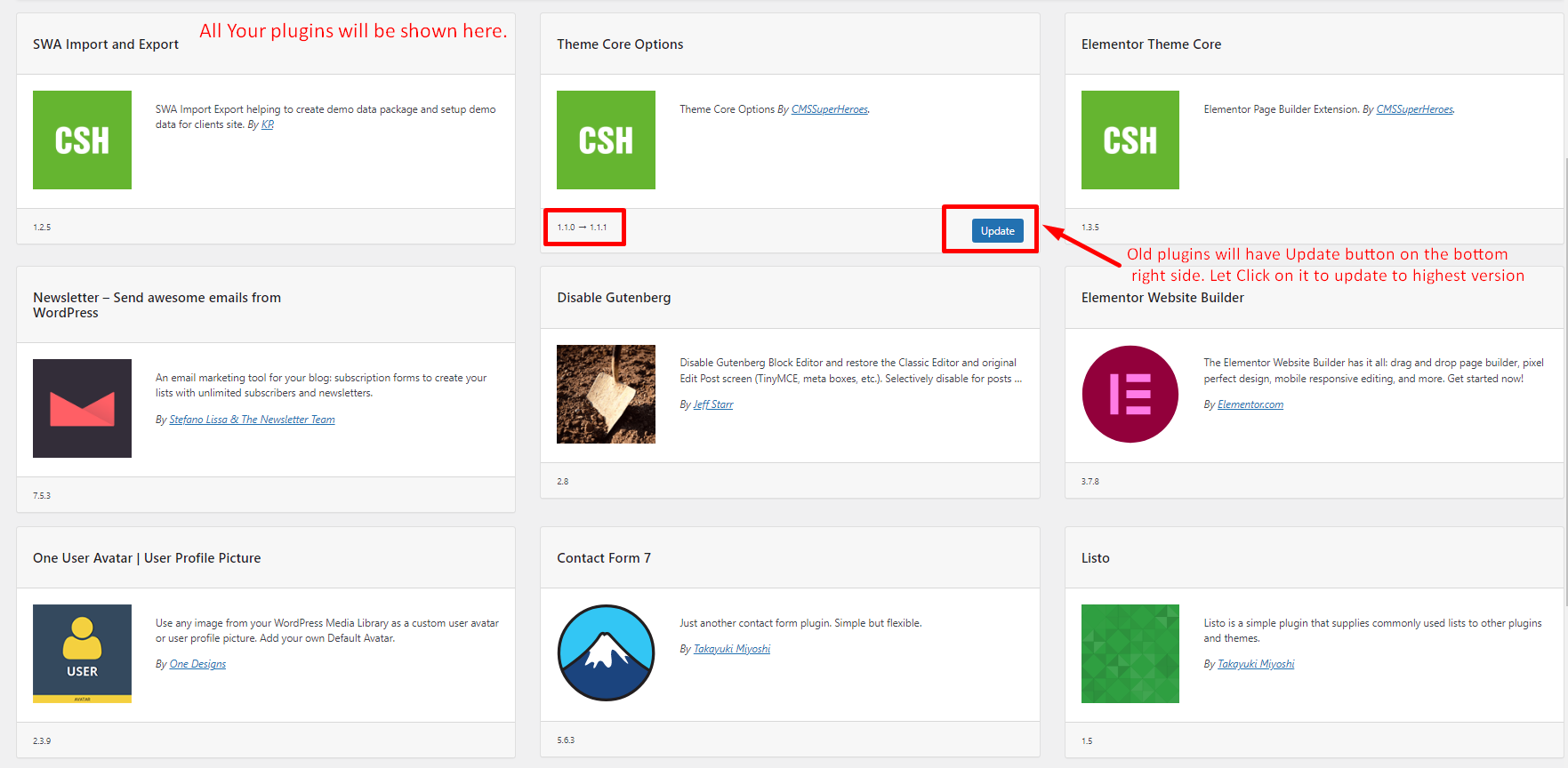
1. Go to **Chani** **-> Dashboard**
2\. On the Plugin panel, click the **Update** button below old plugins.
3\. After all successfully, you are done.